In today’s fast-paced academic environment, simply scheduling sessions isn't enough. Students need structured preparation. Tutors need visibility. Admins need clarity. That’s where Evallo’s Prepwork comes in. It is a dedicated space for managing mock tests, assignments, DSAT® prep, and more. Prepwork streamlines the planning, assigning, and tracking of academic prep material so that tutoring teams can focus on outcomes, not operations.

Prepwork is the central hub for everything related to learning reinforcement. It empowers tutoring teams to:
Create, assign and and manage structured practice tests
Monitor student performance via score reports and progress charts
Maintain consistency and visibility across tutors, students, and parents
Whether it's assigning a DSAT® test or building a topic-wise mock test, Prepwork ensures nothing slips through the cracks.
Get Started with PrepWork:
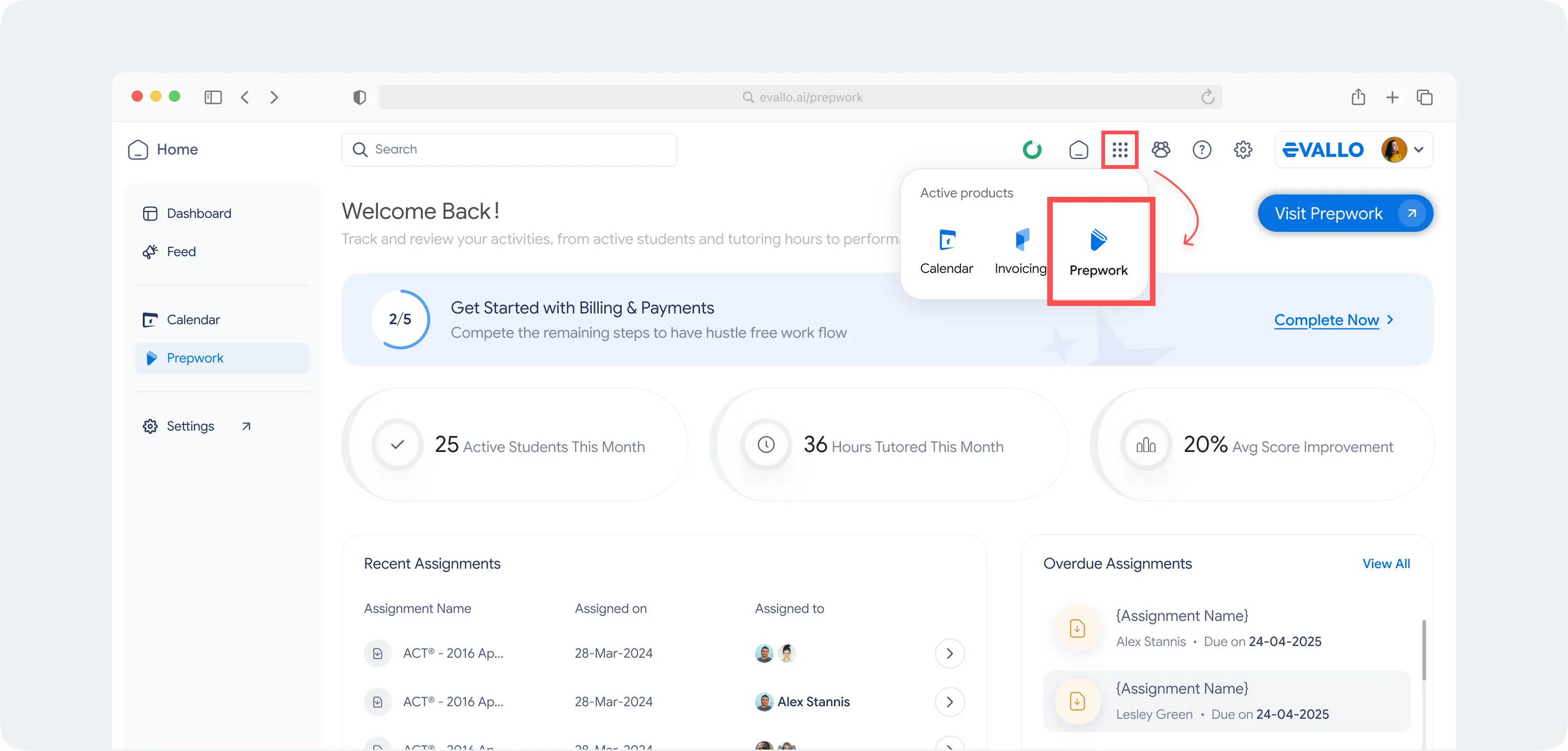
From your dashboard, simply click on the App Tray located in the navigation bar at the top. You’ll find PrepWork listed alongside other Evallo products. One click, and you're in. No extra setup, no switching platforms — just streamlined access to power-packed test prep material built right into your Evallo workspace.
Key Features
1. Assign Tests to Students & Groups
To assign a test on Evallo,
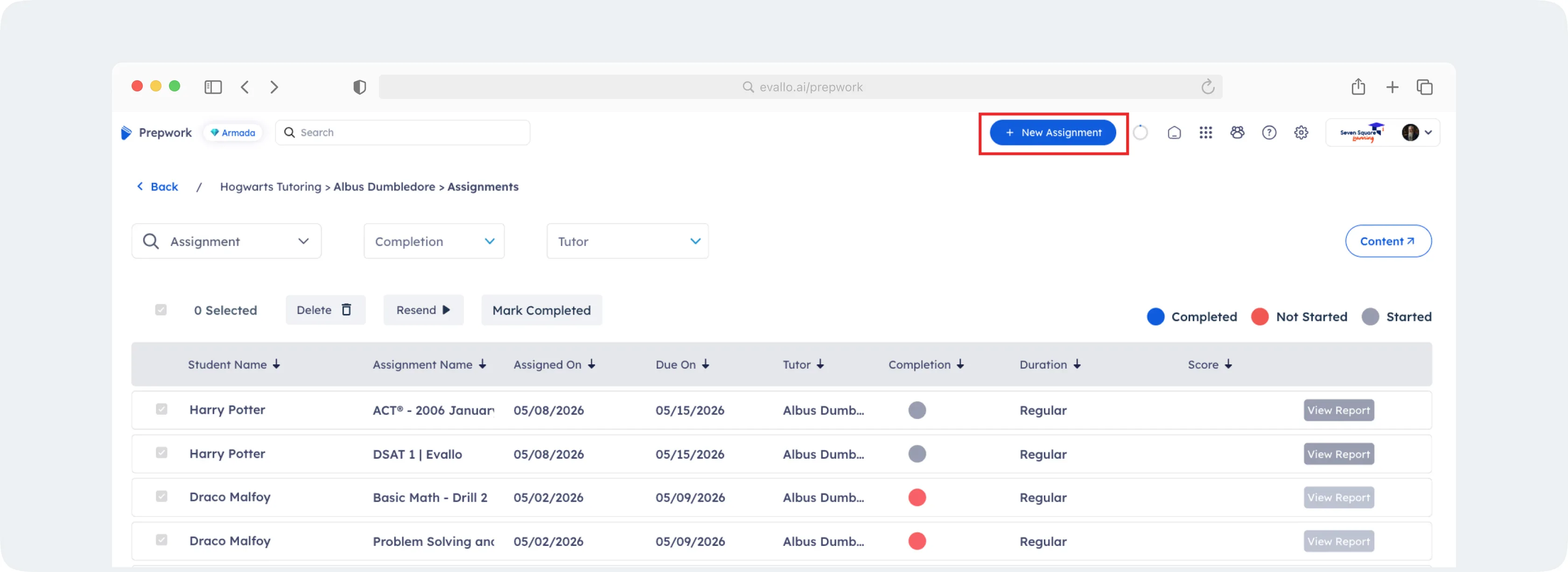
Click on the New Assignment button.
On the New Assignment modal, select Student (default option) to assign the test to specific students or Groups to assign it in bulk to student groups created on Evallo. You can select multiple students or groups.
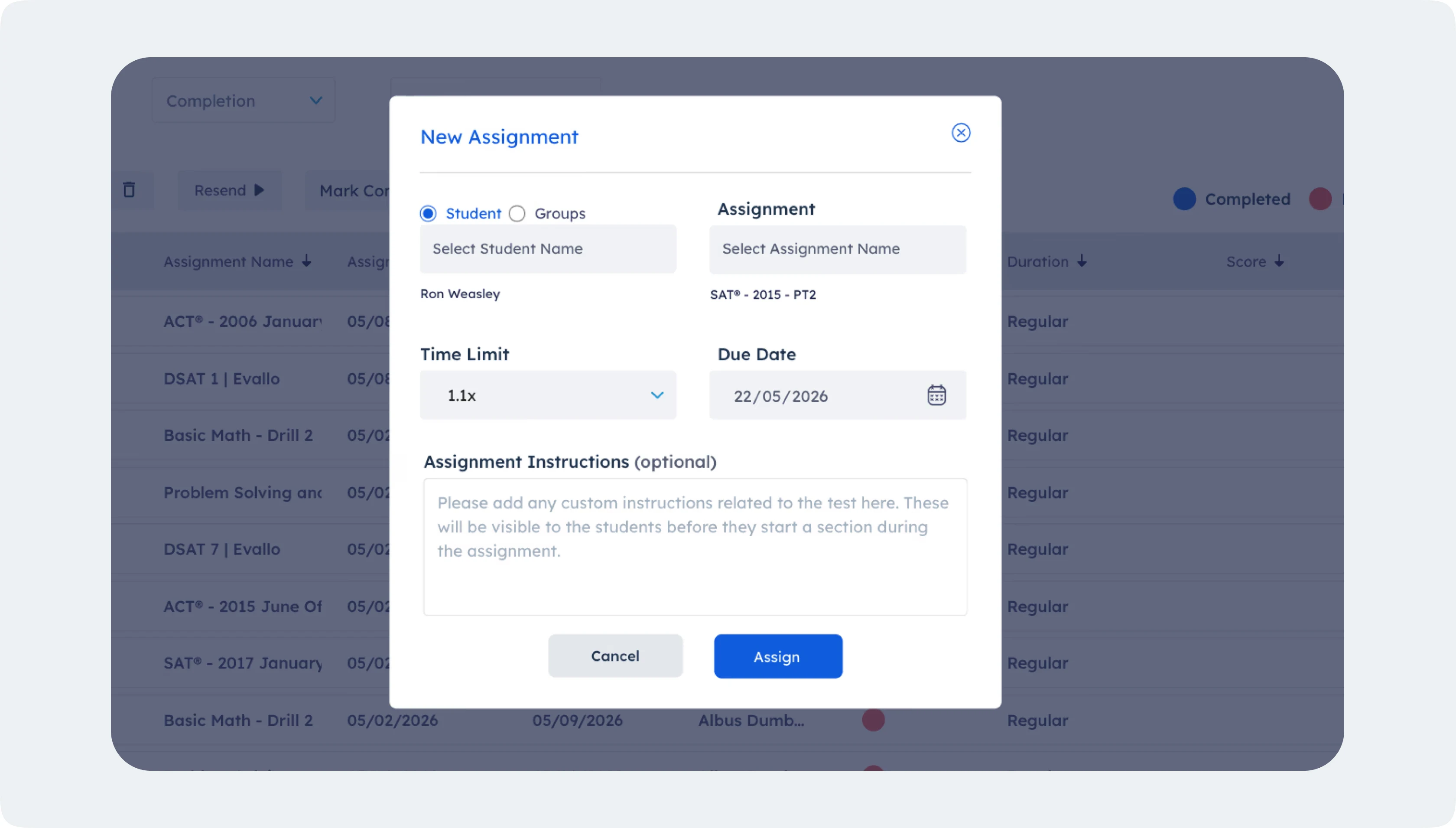
Select the Assignment(s) that need to be assigned to the student(s) or group(s). You can select multiple assignments using this dropdown. Currently, Evallo supports four types of tests:
a. DSAT® (In-platform UI consistent with DSAT test-taking experience).
b. SAT® (PDF-based)
c. ACT® (PDF-based). We’re working on adding the latest enhanced ACT option on the platform soon.
d. Other (PDF-based, used for custom test formats)
For PDF based tests, students need to access the questions via the uploaded PDF file while marking their responses on the UI via answer bubbles.
Define the Time Limit (by default set to 1x). This defines the time allocated to the student(s) to complete the test.
Define a Due Date. This defines the date by which the student(s) need to complete the assignment.
Add any Assignment Instructions (optional) if needed and click the Assign button to create the assignment.
3. Notifications & Reminders
Integrated email reminders ensure students never miss assignment deadlines or report updates, and tutors can easily adjust tests based on pace and performance. Tutors get full visibility with timely communication on the student’s performance.
4. Performance Tracking & Feedback
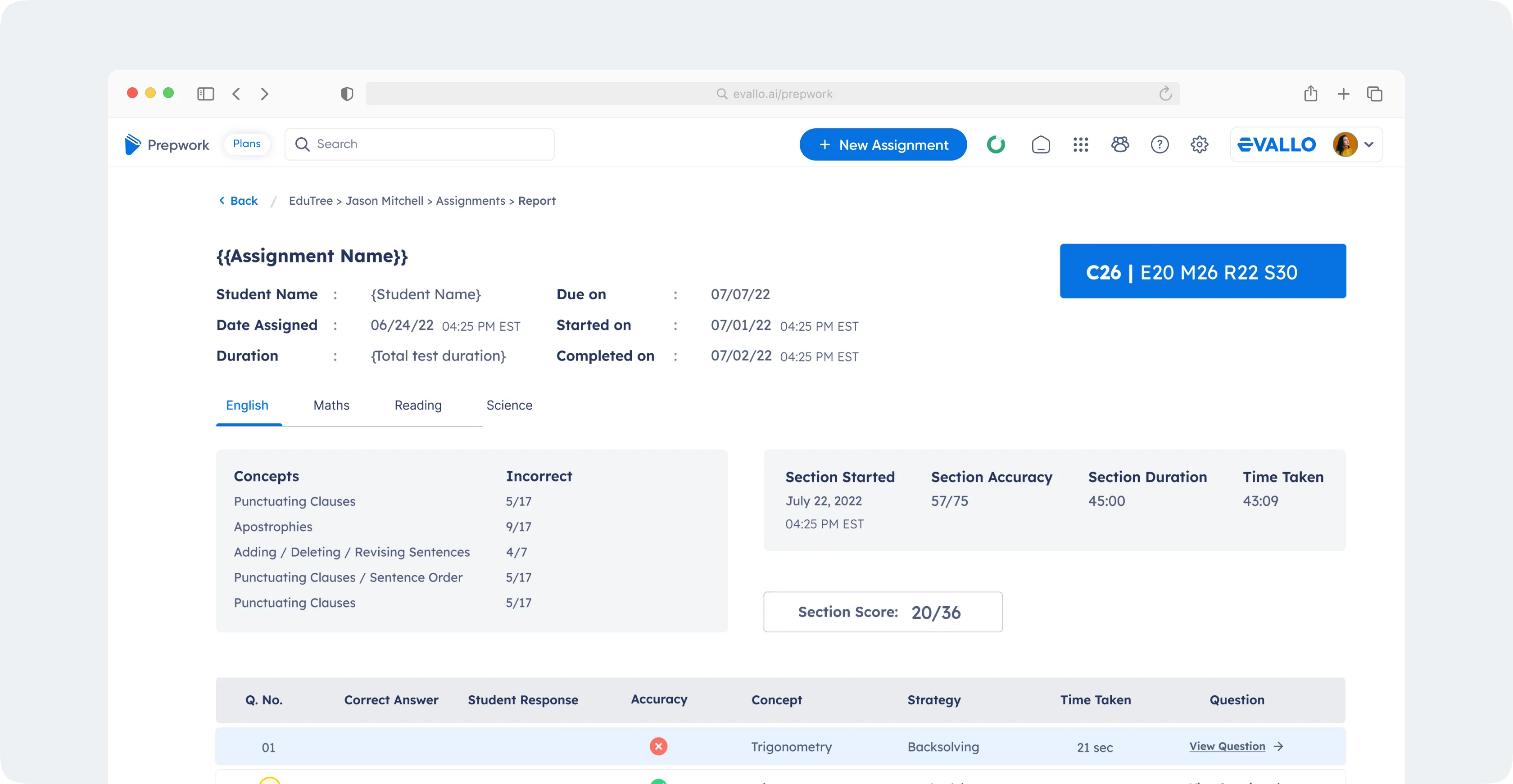
Tutors and admins can view the score report once a test is completed, which helps in quick evaluation of performance and monitor progress across specific topics or concepts over time. They can monitor completion rates, performance scores, incorrect responses and student feedback from a single dashboard, and leverage the text and video explanations during reviews.
This facilitates in-depth assessment and personalized tracking, with a clear path to desired outcomes.
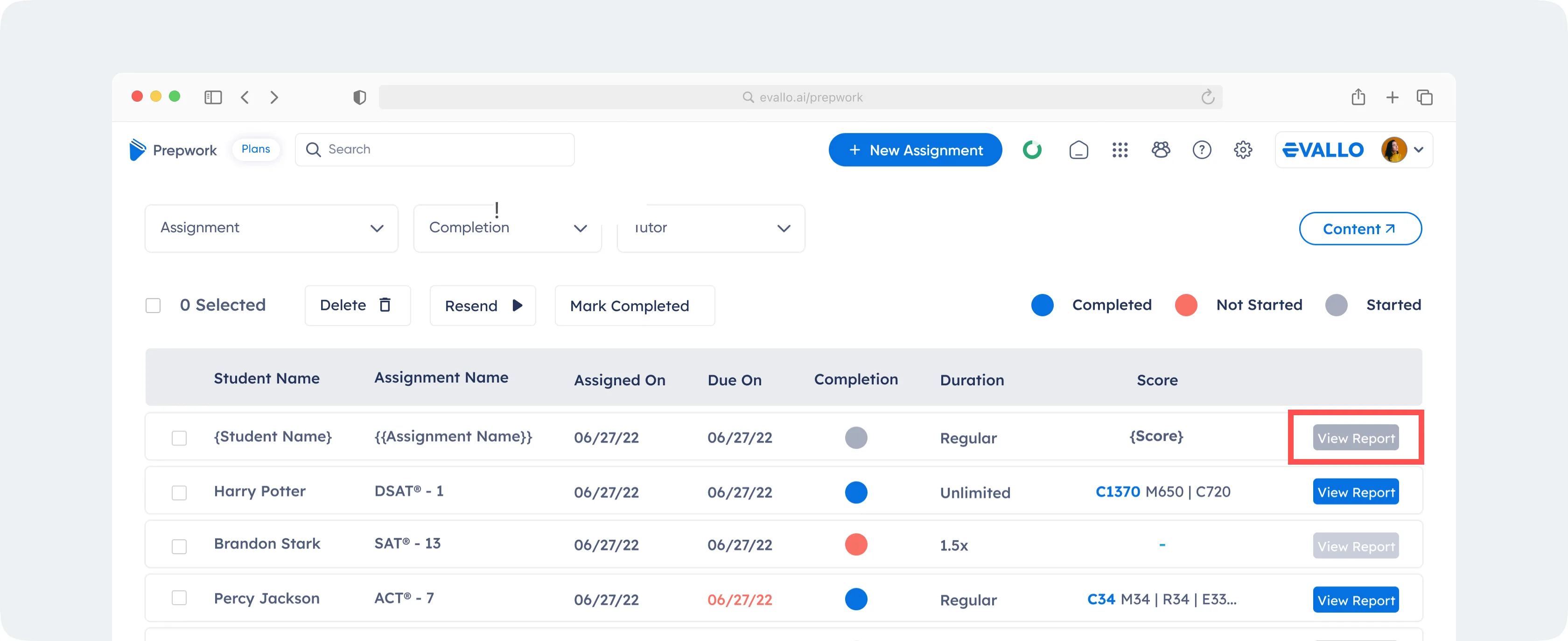
To view the score report for a completed assignment, simply click on the View Report button in the assignments table.
Permissions & Access Control
Prepwork supports role-based access, ensuring:
Tutors view the assignments only for the students associated with them.
Admins can view aggregate data and assign tests across the organization.
Students/parents only see content and performance data relevant to them.
Everything is designed to reduce noise and increase focus.
Why Prepwork Works
Prepwork is designed with tutoring behavior in mind. It respects the time of tutors and makes preparation easy to assign, complete, and track. Whether you're running a high-volume institution or a solo tutoring business, Prepwork helps ensure that learning doesn’t just happen in the session, it extends before and after it, too.

Was this article helpful?
Yes
No