In today’s fast-paced academic environment, simply scheduling sessions isn't enough. Students need structured preparation. Tutors need visibility. Admins need clarity. That’s where Evallo’s Prepwork comes in. It is a dedicated space for managing mock tests, assignments, DSAT® prep, and more. Prepwork streamlines the planning, assigning, and tracking of academic prep material so that tutoring teams can focus on outcomes, not operations.

Prepwork is the central hub for everything related to learning reinforcement. It empowers students and parents to:
Take structured practice tests
Monitor performance via score reports and progress charts, while maintaining consistency and visibility
Get Started with PrepWork:
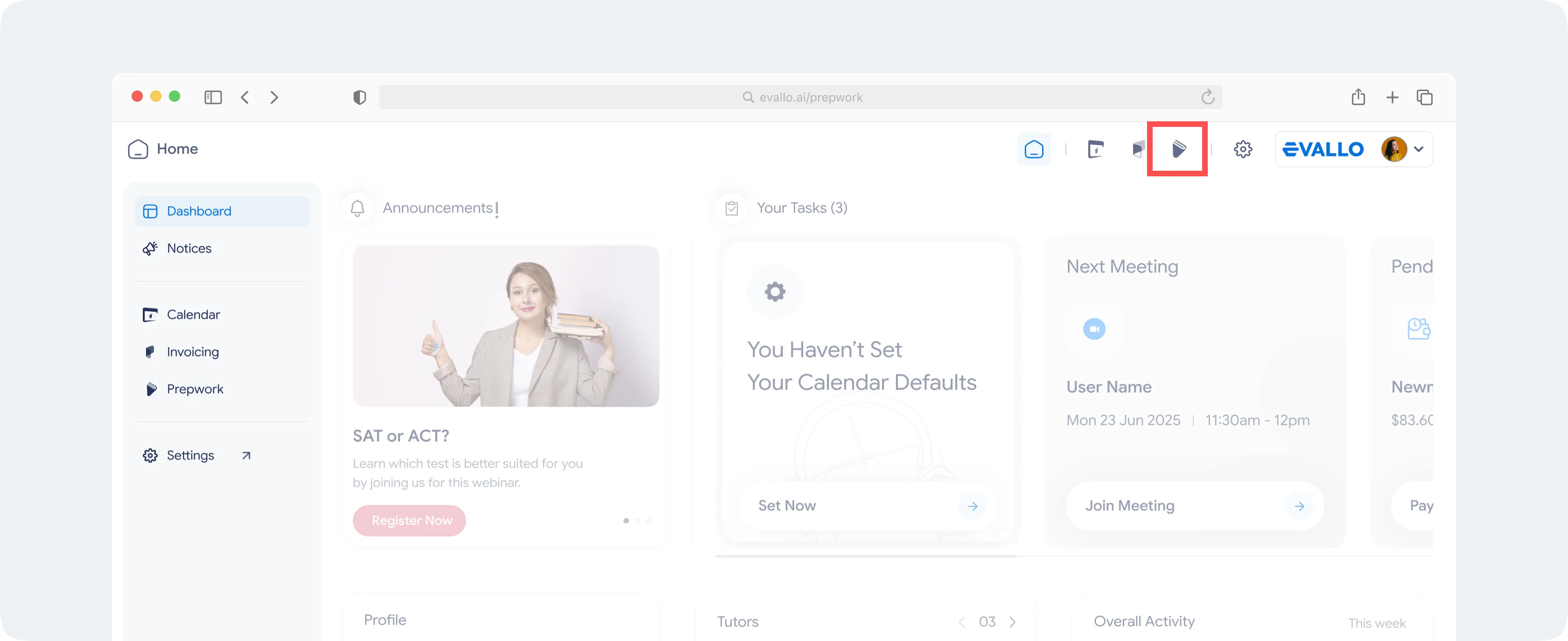
From your dashboard, simply click on the Prepwork icon (listed alongside other Evallo products.) located in the navigation bar at the top - one click, and you're in.
Key Features
1. Take Tests within Evallo
Students receive email notifications & timely reminders whenever tests are assigned to them. They can view, attempt and submit the relevant tests on their account under Prepwork, without needing to exit Evallo. They also have visibility on the due date, time limits, any specific instructions and other information.
To start a test, use the following steps
Go to Prepwork on your Evallo account.
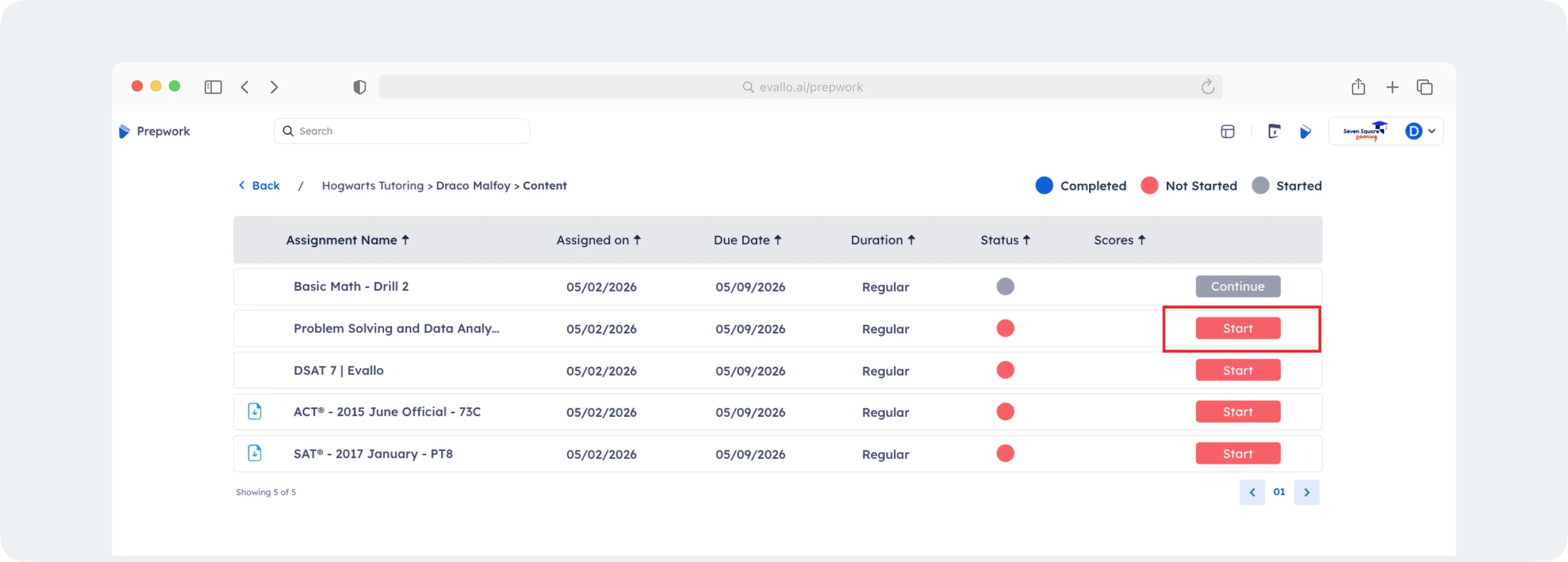
Find the relevant test assigned to you and click on Start to start the test
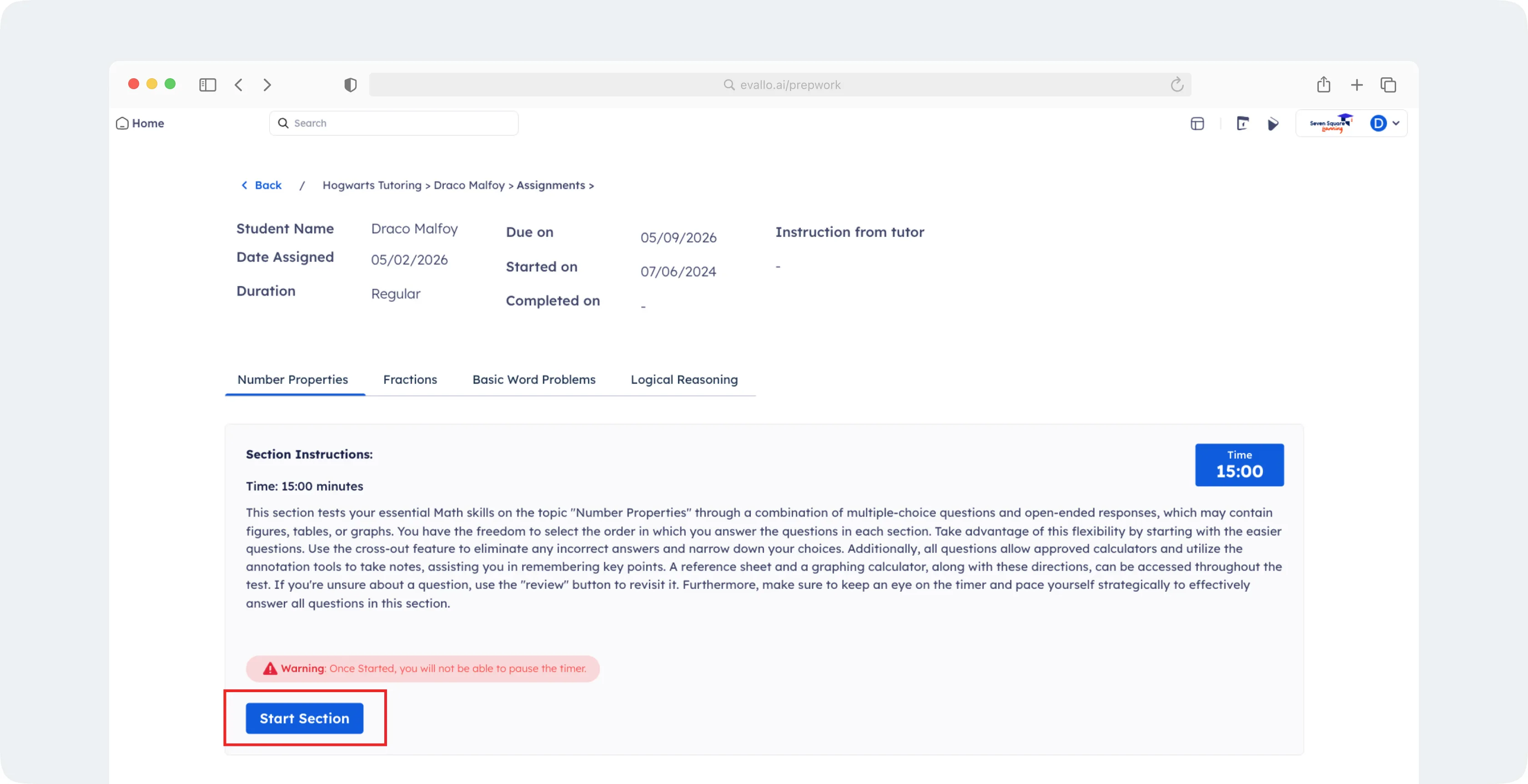
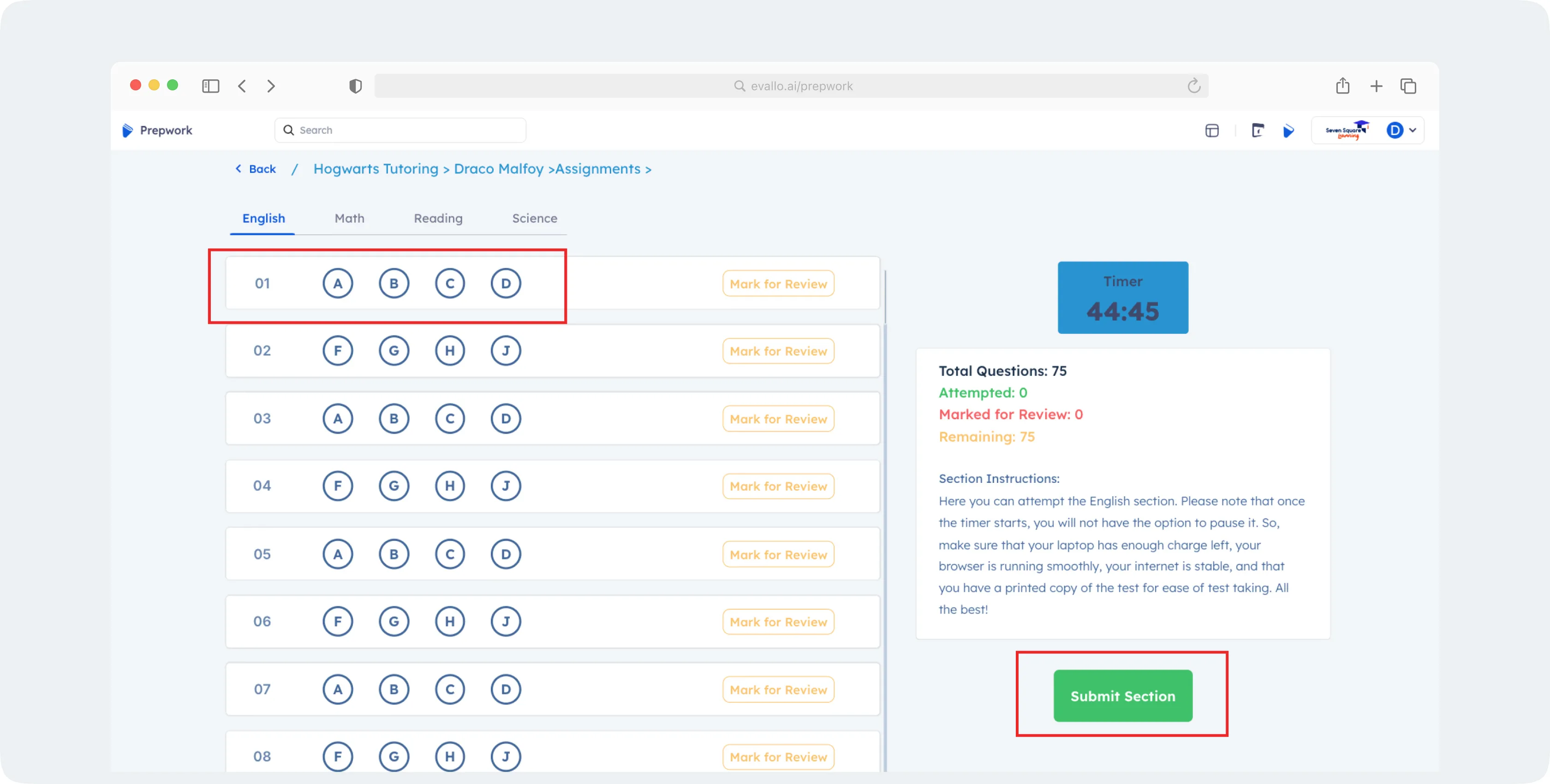
Go through the instructions, if any, and click on Start Section. Students don’t need to attempt all sections of a practice test in one go - all their submitted work is automatically saved and they can resume later without any hassles. However, once you start a section, it needs to be submitted before the test can be paused or you can move to another section.
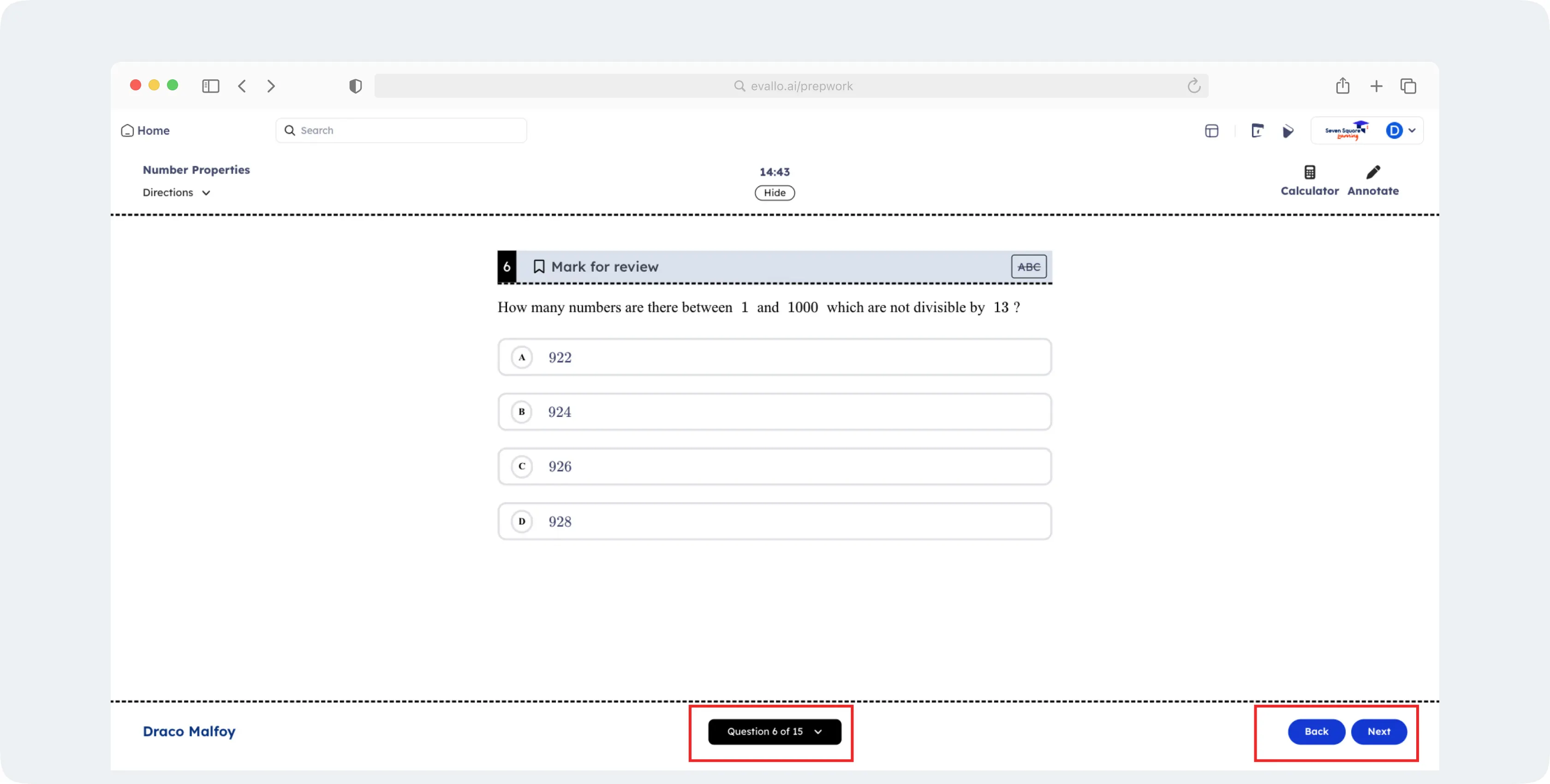
Attempt the questions in the section. Consistency with the DSAT® test UI makes the preparation & feedback experience consistent and intuitive. The timer, calculator and annotator are tools to help you in your preparation. You can move across questions by using the Back and Next buttons, or simply jump to any question number by using the question tray at the bottom.
Once all the questions are answered, click the Submit button (available on the final question). Click Yes on the modal to submit the section.
For PDF tests, you need to access the questions via the PDF file available on the test while marking your responses on the UI via answer bubbles.
2. Notifications & Reminders
Integrated email reminders ensure students never miss assignment deadlines or report updates. Parents get full visibility with timely communication on the student’s performance.
3. Performance Tracking & Feedback
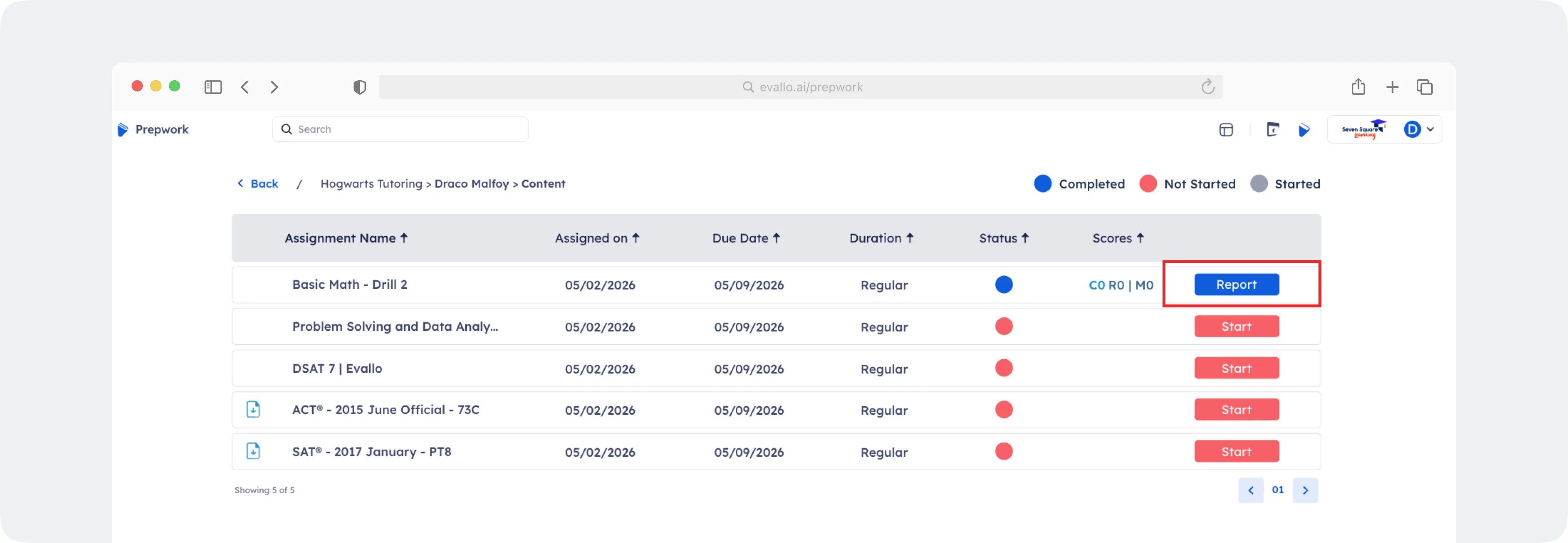
Students and parents can view the score report once a test is completed, which helps in a quick analysis of performance, before in-depth reviews with tutors.
To view the report for a completed test, simply go to Prepwork and click on the Report button against the test.
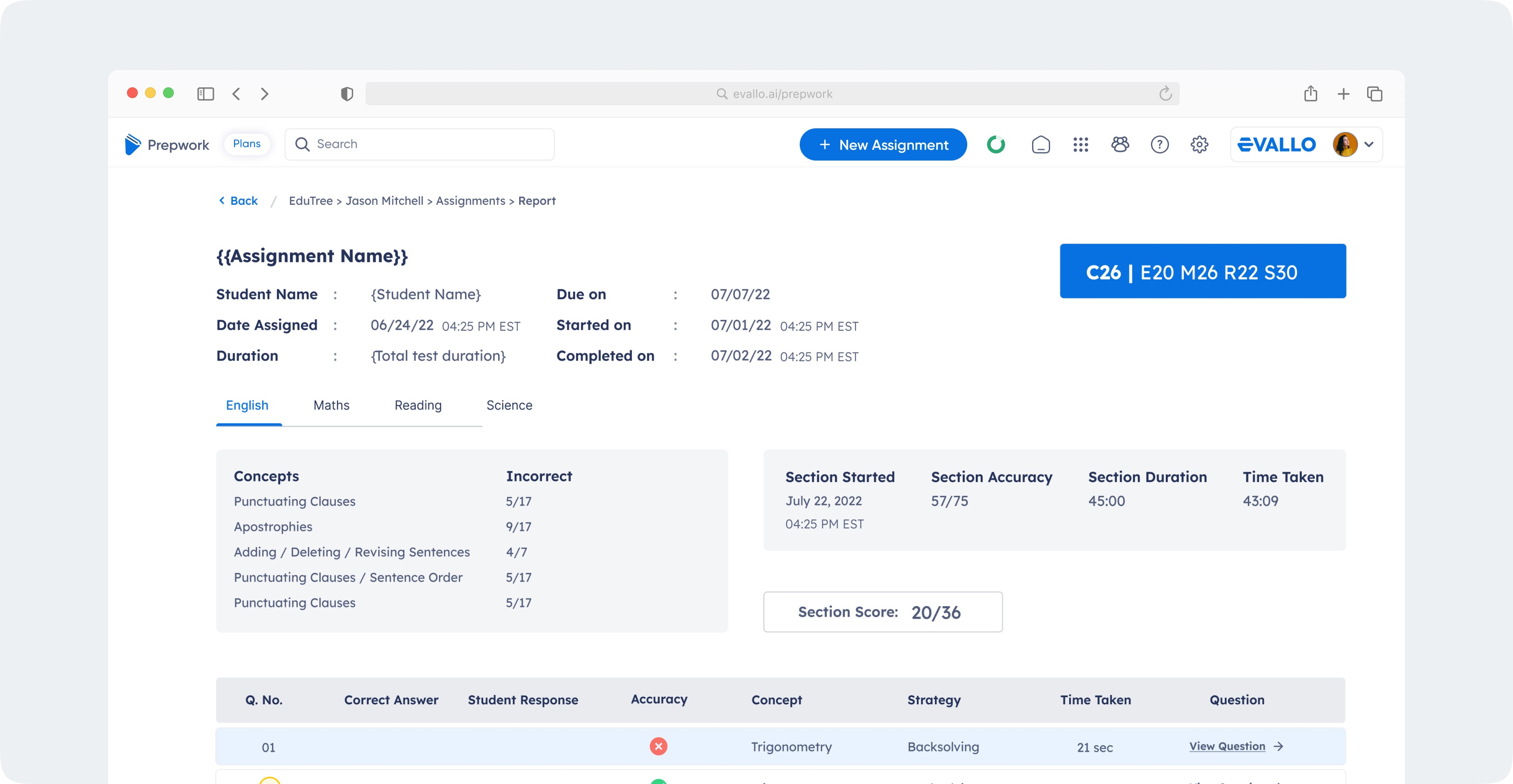
Students can review incorrect responses, along with text and video explanations wherever available.
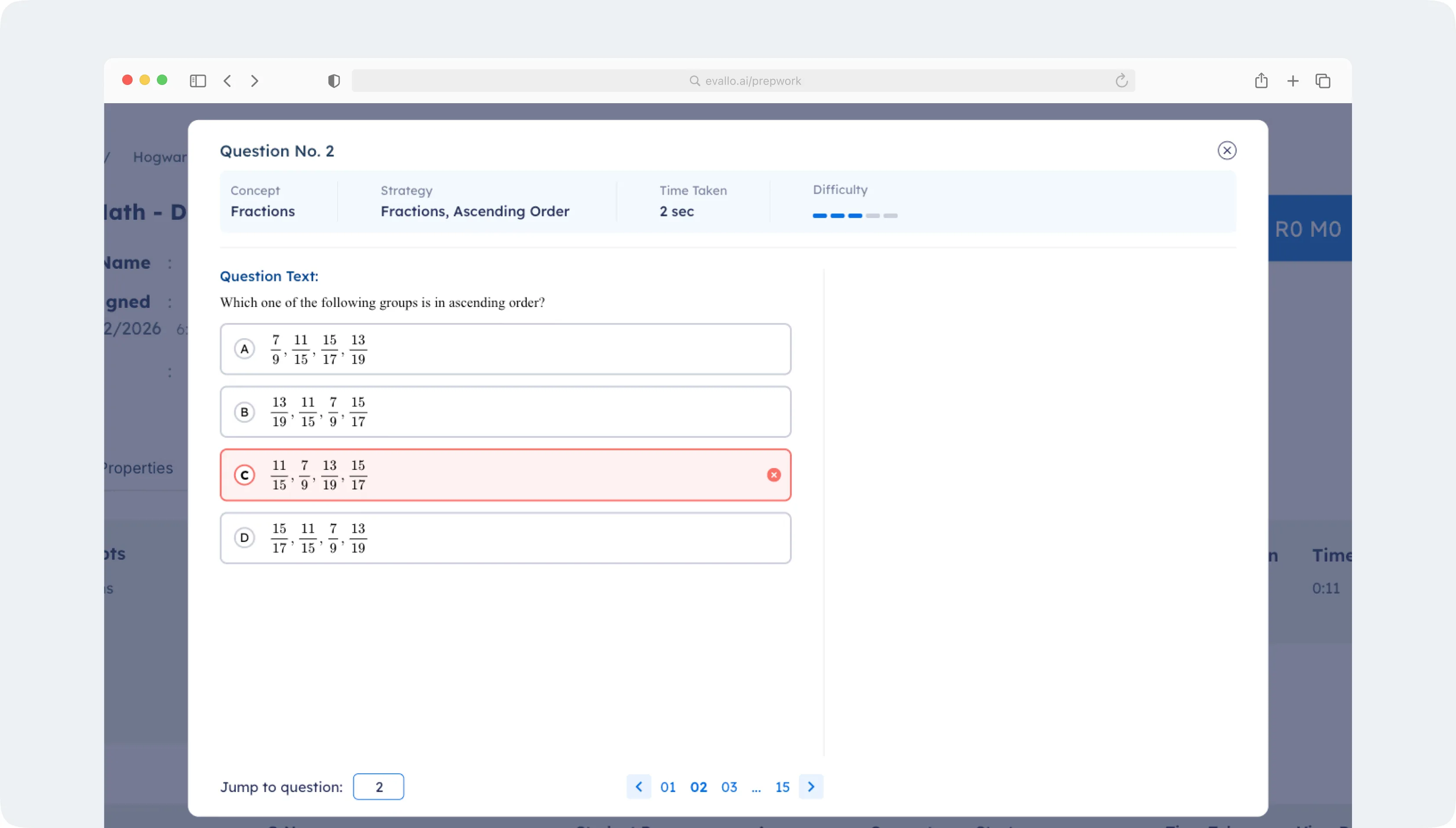
This facilitates progress tracking towards specific outcomes. Parents get full visibility over their child’s performance and progress on specific topics or concepts.
Why Prepwork Works
Prepwork is designed with student behavior in mind. It respects the time of students and makes preparation easy to complete and track. Whether you're just starting your preparation or need better tracking of outcomes, Prepwork is there to help you reach your goals.

Was this article helpful?
Yes
No